Most buffering problems have nothing to do with your TV or your IPTV player — they come down to how data moves through your home network. The good news: a few small changes usually make a big difference. Here's how to get a smooth, reliable picture whether you're in a downtown condo or a house at the end of a long rural line.
How much speed do you need?
As a general guide for IPTV:
| Picture quality | Suggested speed per screen |
|---|---|
| HD | 10 Mbps or more |
| 4K | 25 Mbps or more |
Remember that these numbers are per screen, and everyone in the house shares the same connection. If someone is gaming, joining a video call or downloading a large update while you watch the game, plan for extra headroom.
Test your real speed
Run a speed test on the device you watch on, at the time of day you usually watch — evenings are often the busiest time on home internet networks. Testing on your phone next to the router tells you very little about what your Firestick behind the TV is getting.
Stability beats raw speed
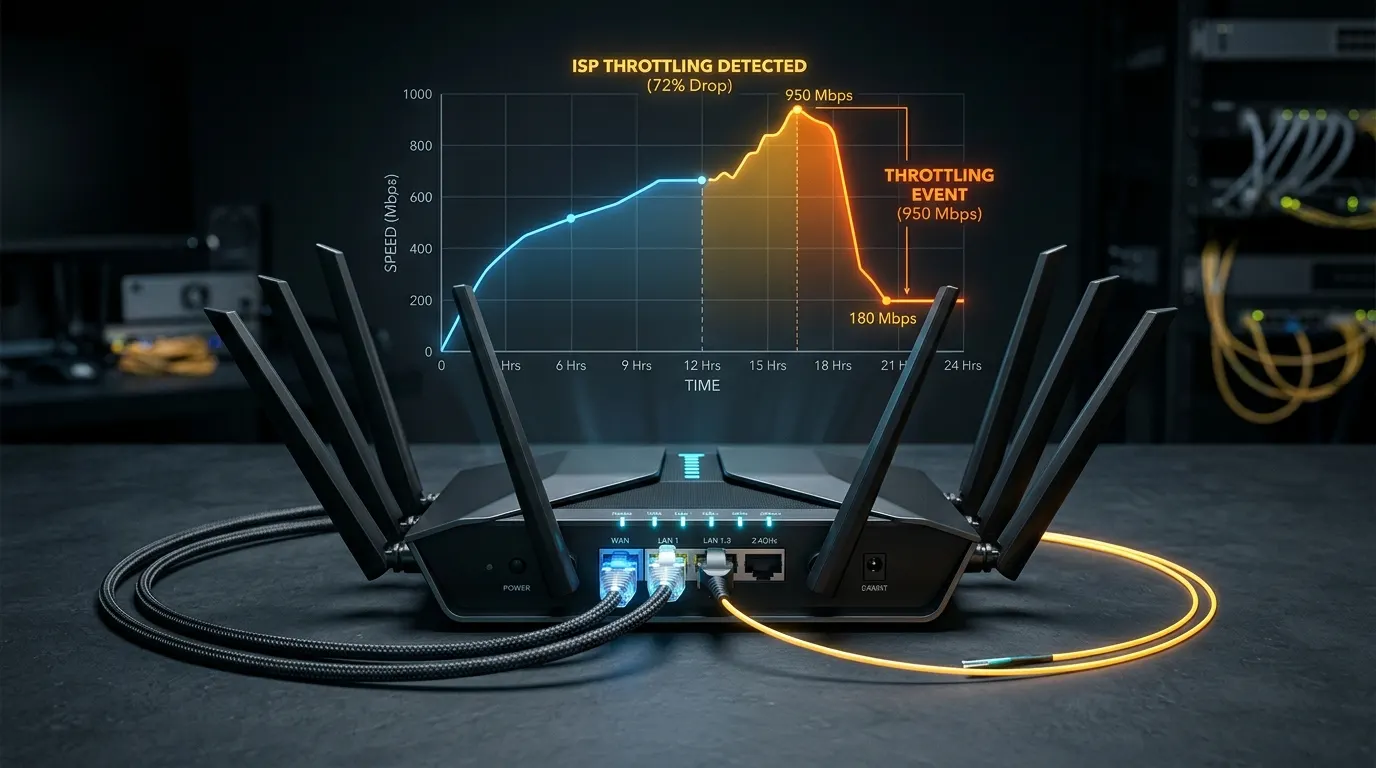
A steady 30 Mbps connection will stream better than one that jumps between 200 Mbps and almost nothing. Live TV is especially sensitive to drops, because there's only a small buffer to absorb them.
Use a wired connection where you can
An Ethernet cable from the router to your TV, Android TV box or Fire TV (with an Ethernet adapter) removes most Wi-Fi problems in one step. If running a cable isn't practical, powerline adapters — which send the network through your home's electrical wiring — or a mesh Wi-Fi system are good alternatives.
Get the most from Wi-Fi
- Use the 5 GHz band for streaming devices close to the router; it's faster and less crowded than 2.4 GHz.
- Keep the router in the open, up high and away from metal cabinets, fish tanks and microwaves.
- Move the streaming stick out from behind the TV using an HDMI extender.
- Reboot the router every so often, and keep its firmware up to date.
Quick fixes when the picture buffers
- Restart your streaming device and router.
- Close other apps on the device and pause big downloads elsewhere in the house.
- Clear your IPTV player's cache in the device's app settings.
- Try lowering the stream quality from 4K to HD.
- Test a different channel — if only one channel struggles, the issue may be with that stream rather than your connection.
If buffering continues after these steps, message our support team with your device, your connection type (Wi-Fi or wired) and a recent speed test result, and we'll help you troubleshoot.
The bottom line
Fast internet helps, but a stable connection — ideally wired — is what really makes IPTV feel like traditional TV. Get that right and you'll spend your evenings watching, not waiting. For device-specific steps, see our installation guide or the Firestick setup guide.