IPTV CanadaStreaming TV
Amazon Fire TV Stick plugged into the side of a television

Installation guide

IPTV setup made simple, on every device

Follow the steps for your device and you'll be watching in minutes. Stuck? Message us on WhatsApp and we'll walk you through it.

Overview

Three steps on any device

  1. 01

    Get your login details

    After you subscribe or request a trial, we send your Xtream Codes details (username, password, server URL) and/or an M3U link.
  2. 02

    Install a player app

    Install a compatible IPTV player from your device's official app store, or from the developer's official website.
  3. 03

    Sign in and start watching

    Open the player, choose Xtream Codes or M3U, enter your details, and wait a moment while channels and the guide load.
Amazon Fire TV Stick connected to a TV's HDMI port

Amazon Fire TV Stick & Fire TV

Suggested players: IPTV Smarters Pro, TiviMate

  1. 1From the Fire TV home screen, open Find › Search and look for your player in the Amazon Appstore. If it's listed, install it and skip to step 5.
  2. 2If your player isn't in the Appstore, install the free Downloader app from the Amazon Appstore.
  3. 3Go to Settings › My Fire TV › Developer Options › Install unknown apps, and turn it on for Downloader. (If Developer Options is hidden, open Settings › My Fire TV › About and select your device name seven times.)
  4. 4Open Downloader and enter the official download address published by the player's developer, then install the app.
  5. 5Open the player, choose “Login with Xtream Codes API” (or add a playlist), and enter the details we sent you.

Tip: Only install apps from official app stores or the developer's own website. For the best results, use an HDMI extender or Ethernet adapter if your TV's Wi-Fi signal is weak.
Android TV box on a table in front of a TV dashboard

Android TV, Google TV & Nvidia Shield

Suggested players: TiviMate, IPTV Smarters Pro

  1. 1Open the Google Play Store on your Android TV or Google TV device.
  2. 2Search for your preferred IPTV player and select Install.
  3. 3Open the app and choose to add a playlist.
  4. 4Select Xtream Codes and enter the username, password and server URL we sent you — or paste your M3U link.
  5. 5Let the channels and programme guide load, then set your time zone in the app's settings.

Tip: Android TV boxes with an Ethernet port are ideal for living-room setups and live sports.

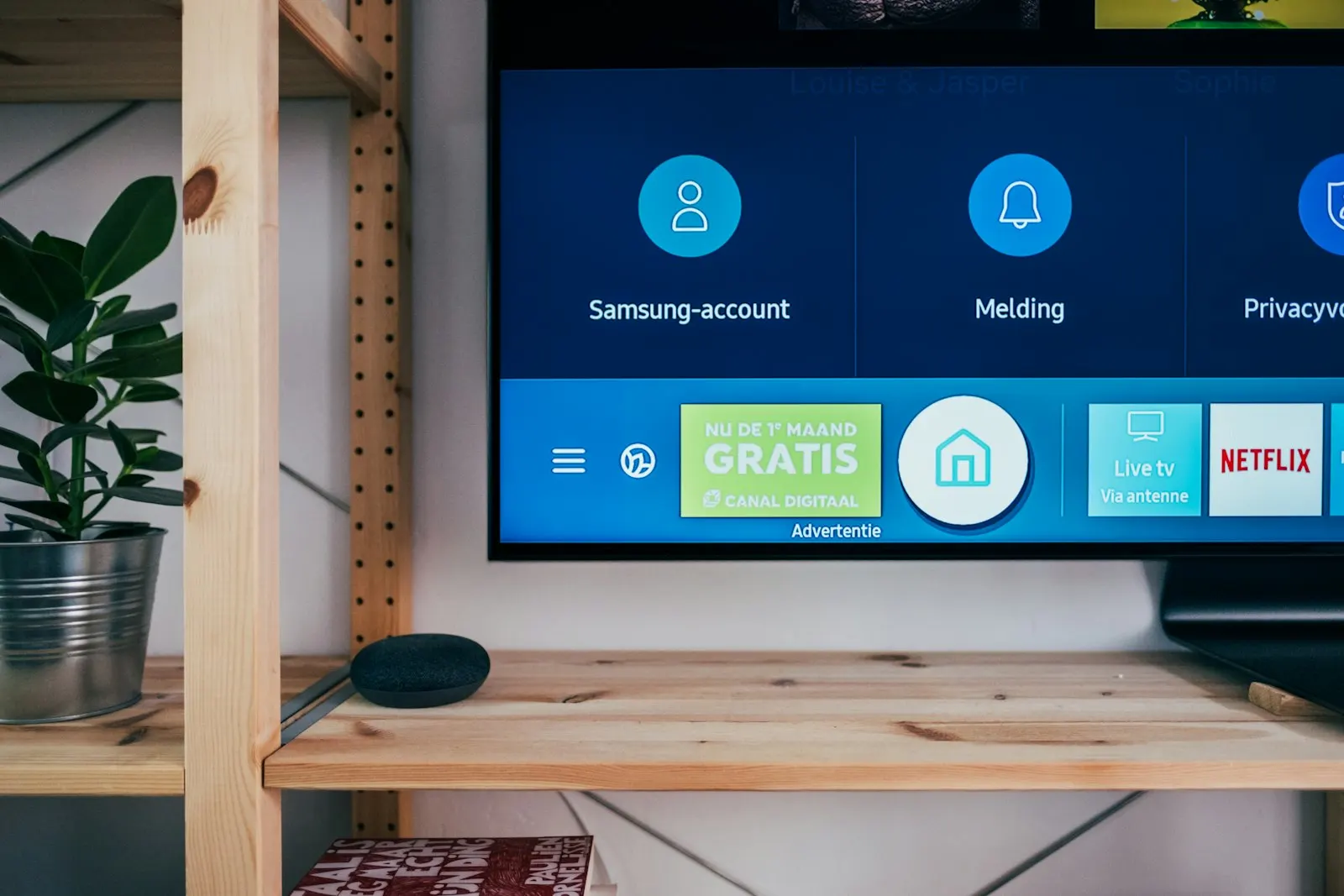
Samsung Smart TV home screen with apps

Samsung (Tizen) & LG (webOS) Smart TVs

Suggested players: Compatible IPTV players from the Samsung or LG app store

  1. 1On Samsung, open Apps; on LG, open the LG Content Store.
  2. 2Search for “IPTV” and choose a compatible player — available apps vary by TV model, year and region.
  3. 3Install and open the app. Some TV players show a device ID or MAC address and ask you to activate or add your playlist on the developer's website.
  4. 4Enter your Xtream Codes details or M3U link in the app (or on the developer's site, if the app requires it).
  5. 5Restart the app so your channels and guide load.

Tip: Some Smart TV players charge their own app activation fee — this is separate from your IPTV Canada plan. If your TV's app store is limited, a Firestick or Android TV device is an easy alternative.

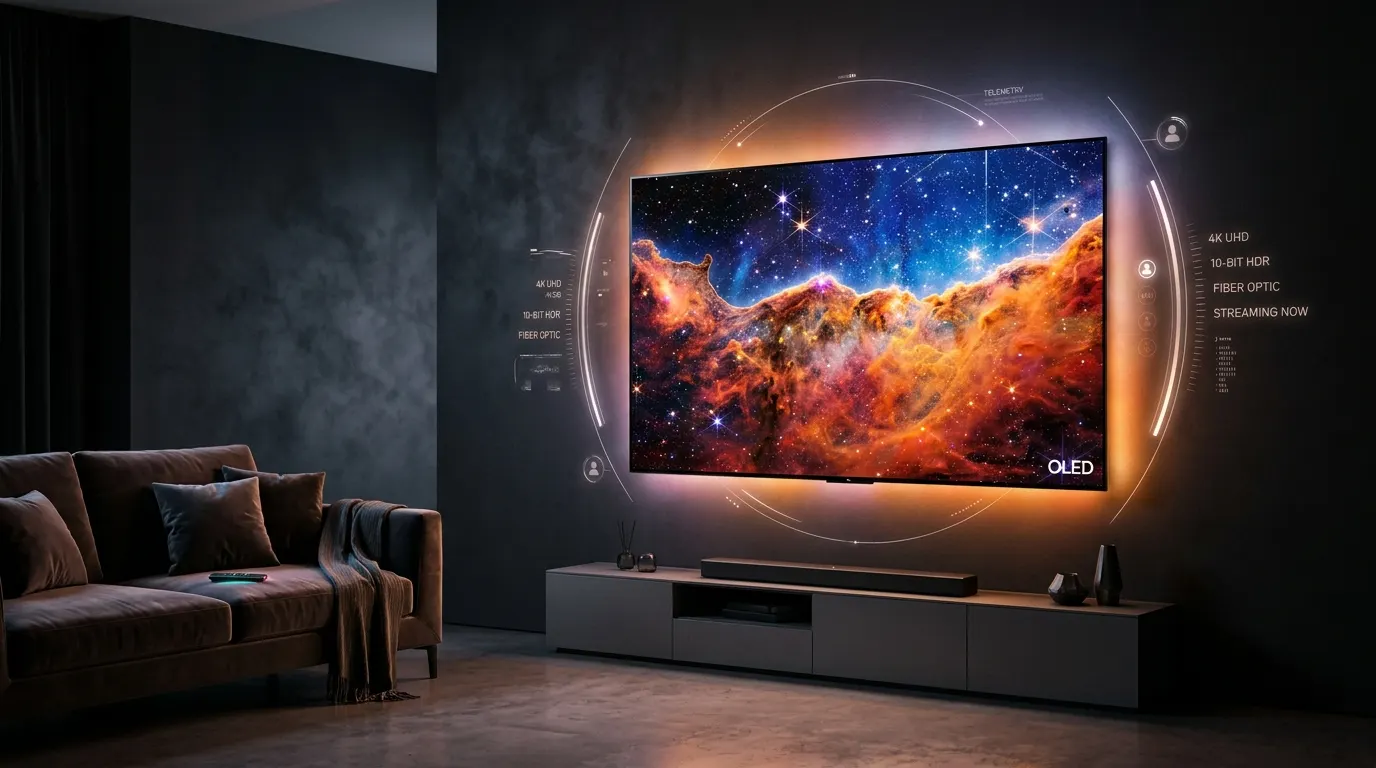
Large 4K television in a modern living room

Apple TV, iPhone & iPad

Suggested players: GSE Smart IPTV, IPTV Smarters

  1. 1Open the App Store on your Apple TV, iPhone or iPad.
  2. 2Search for a compatible IPTV player and install it.
  3. 3Open the app and look for the option to add an Xtream Codes account or a remote M3U playlist.
  4. 4Enter the details we sent you and save.
  5. 5Open your new playlist to load channels and the programme guide.
Smartphone showing a home screen of apps

Android phones & tablets

Suggested players: IPTV Smarters Pro, TiviMate (tablets)

  1. 1Open the Google Play Store and search for your preferred IPTV player.
  2. 2Install and open the app.
  3. 3Choose Xtream Codes login and enter your username, password and server URL.
  4. 4Wait for the content to load, then browse Live TV, Movies or Series.

Tip: Use Wi-Fi rather than mobile data to avoid using up your data plan.

Laptop on a desk by a bright window

Windows & Mac computers

Suggested players: IPTV Smarters (desktop), VLC media player

  1. 1Download a desktop IPTV player from its developer's official website, or install VLC media player from videolan.org.
  2. 2In a dedicated IPTV player, choose Xtream Codes and enter your details.
  3. 3In VLC, go to Media › Open Network Stream (Windows) or File › Open Network (Mac) and paste your M3U link.
  4. 4Your channel list opens as a playlist — select a channel to start watching.

Tip: VLC is great for a quick test, but a dedicated IPTV player gives you the full programme guide.

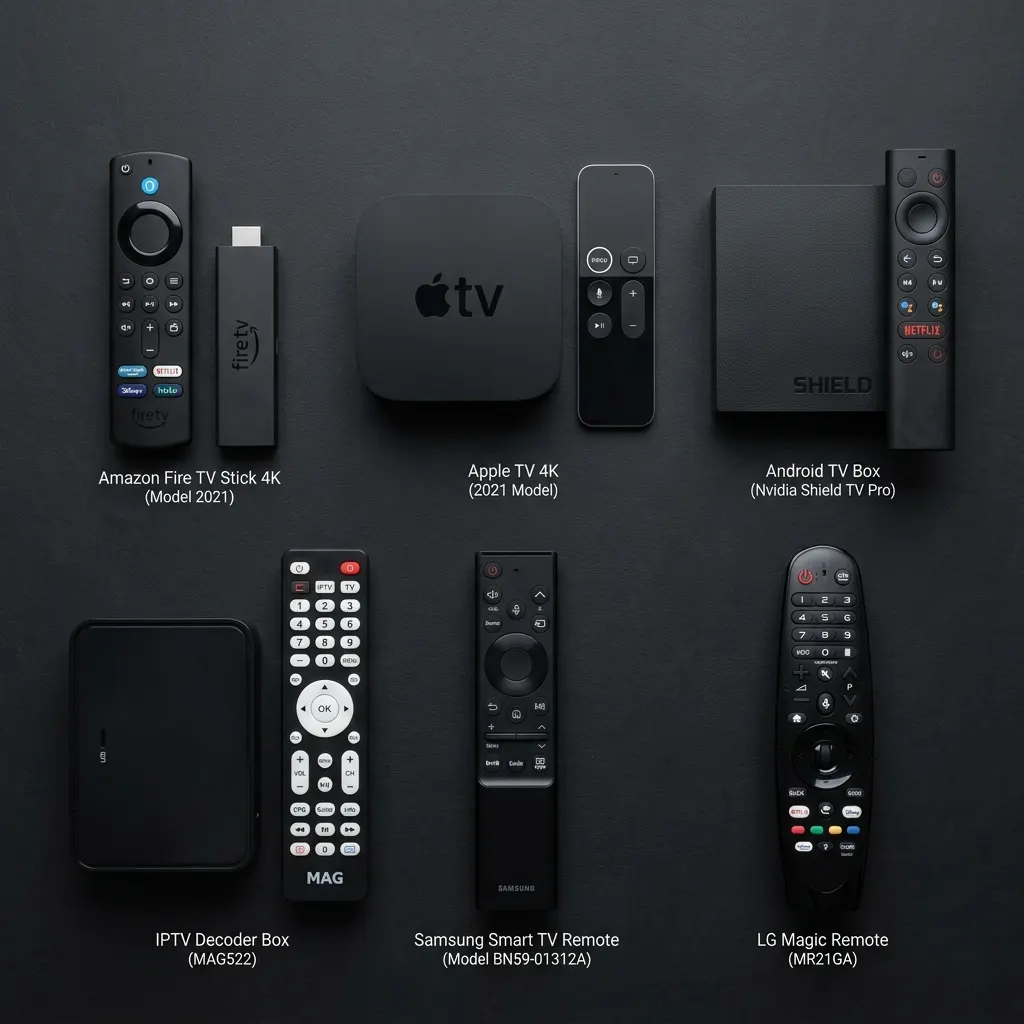
Streaming devices and remote controls laid out on a dark surface

MAG set-top boxes

Suggested players: Built-in portal (Stalker middleware)

  1. 1Send us your box's MAC address — it's printed on the label underneath the device.
  2. 2We'll register your MAC address and send you a portal URL.
  3. 3On the MAG box, go to Settings › System settings › Servers › Portals.
  4. 4Enter a portal name and the portal URL, save, and restart the box.

Login formats

Xtream Codes or M3U — what's the difference?

Xtream Codes API

A username, password and server URL. Easiest to type with a remote, and players load live TV, movies, series and the guide automatically.

M3U playlist link

A single web address containing your channel list. Handy for players like VLC; the guide may need a separate EPG link, which we can provide.

Your login details are personal. Don't share them — each standard plan supports one connection at a time.

Troubleshooting

Something not working?

TV in a dark living room showing a loading indicator

“Authorization failed” or login error

Check the username, password and server URL for typos, extra spaces or a missing “http://”. Details are case-sensitive.

Channels load but buffer

Restart your router and device, switch to Ethernet or 5 GHz Wi-Fi, and close other apps using bandwidth.

Guide is empty or at the wrong time

Refresh the EPG in your player's settings and set the correct time zone for your province.

App closes or freezes

Clear the app's cache, make sure the app is up to date, and restart the device.
Mountain lake in the Canadian Rockies surrounded by forest

Prefer a hand with setup?

Tell us which device you're using and we'll guide you step by step on WhatsApp — in English or French.